Showing posts with label Google Docs. Show all posts

Saturday, February 17, 2024

11 Apps I Use Almost Every Day


 Icons shown: Google Home, Gmail, Google Drive, Google Maps, Spiral Player, Pocket, Keep Notes, Brave Browser, Pluto TV, Google News, AntennaPod


So... What's an app, anyway?


It's easy to take apps for granted. Typically they are tight, highly-focused applications (i.e., "apps") that help us accomplish particular chores in a user-friendly way. Wikipedia defines an app as, "...  a software program that's designed to perform a specific function directly for the user or, in some cases, for another software program." Mobile apps are often hardware-specific and designed to run on particular mobile devices while web apps are designed to run inside web browsers that might be working anywhere on the web. 

The key: While we may sometimes experiment with apps that seem interesting or perform exotic functions, the apps that matter most to us are the ones we rely on every day to achieve specific goals. In other words, we don't run apps for the sake of running apps; we run apps to get stuff done that is important to us. 

My Everyday Essential Apps

I just asked my smart phone's "Settings" to list my installed apps. It replied: "List all 161 apps?" Yikes! I only use about a dozen on a regular basis! Apparently my habit of installing apps to "check them out" should be matched with a habit of uninstalling ones I don't use. (Note to self: Scanning this list, I see a bunch I don't remember ever using. Time to do an "app inventory/sort/remove!")

In any case, I'm here to share the apps that I find indispensable and use almost everyday... sometimes many times a day. These are

Google Home - The Google Home app is the command center to keep all our smart devices coordinated. We have eight Google Home (now called "Nest Audio") smart speakers arranged all over our house, so we can pretty much yell "Hey, Google..." from wherever we happen to be and activate one of them to do work for us. My wife and I both use these smart speakers many times per hour to set timers, give us weather reports for anywhere on the planet, answer all sorts of search queries, play news reports/podcasts and carry out verbal instructions to control our 40 plus Smart Home devices such as smart plugs, WiFi-enabled light bulbs and TV.   (Here's a deep dive into how we control and use all our smart home devices:  Smart speaker not useful? Give it more smart things to control! )

Google News feed - This one is addictive! A simple swipe right on my Android phone continually refreshes a never ending bunch of news articles. So I have to be careful with this, since it can suck me into hours of news consumption! What makes it so addictive is that over the years Google has learned what my interests are. So most of the articles the feed shows me are likely to capture my time and attention. (For more info, see: Apple version. Android/Google Play store version.)

Brave Browser - It blocks ads! Period. I repeat: the Brave browser blocks ads! So your browsing experience with Brave is fast and private and uninterrupted by annoying ads. According to the Brave Community, "Brave is fully open source, unlike other Chromium browsers that are managed by a company: Chrome, Edge, Vivaldi, Opera." And it's available on all your devices: Windows, macOS, Linux, Android and iOS.  Learn more here at the Brave browser website.  

Keep Notes - Think "yellow stickies" or note cards. Keep Notes allows you to take notes, make lists and attach links, photos and other files to each of them. Keep Notes can be color-coded and are synchronized and easily searchable across all your devices. So when you make a change in a note on your tablet it's immediately reflected on your phone or computer. My wife and I have a shared Keep note that is our shopping list. When we run out of something we either add it directly to the Shopping list on one of our phones or tablets or simply yell at one of our Google Home (Nest) smart speakers or tap our phone's Google Assistant, telling it to add the item to the Shopping list. Then when we're out shopping we simply check off items as we put them in our cart. Since the list is updated immediately, we both know what's left on our shopping scavenger hunt! I also have Keep Notes which track my car and other home maintenance chores, noting the dates that I completed them, dated reminders to perform them again next time and any relevant details like the service person phone number, serial numbers, etc. Finally, all of my documents, including this blog post, start out as rough ideas dictated into a Keep Note using Google's voice typing keyboard

AntennaPod - There are currently millions of podcasts available on all kinds of topics. I use AntennaPod to search for and subscribe to those that are of interest to me. The app collects the published titles of available episodes and allows me to pick and choose which ones I stream immediately or download for offline use. Listings include audio or video podcasts. But I almost always choose audio so I can do chores or exercise while listening.

Gmail -  It's been nearly 20 years since Google introduced this powerful free email service. Over the years it has become more flexible and powerful, allowing tagging, sorting, forwarding, message chaining, blocking and many other options to help you manage your email.  If you're not using it you really should consider trying it. In fact, many people have several Gmail accounts, using one with family and friends, one with vendors and one for professional contacts. After all, it's free to get an account and, at minimum, you can use it with all those product registration sites which require an email address and could potentially bomb you with Spam. Gmail has wonderful spam guards that will keep most of that stuff out of your sight. (See: "What's So Great About Gmail?" wherein Lifewire explains...  -  https://www.lifewire.com/benefits-of-gmail-1616254 )

Pocket - If you're like me, there are times when you run across an article that looks interesting but you don't have the time to read it immediately. This is where Pocket comes in. In fact, I use it to help me sort my Google News feed. If it's an article I want to read later, I pop it open from the news feed, click the share option and send it to Pocket. Later, when I have the time, I can either read the article in text form or listen to it as Pocket's automated voice reads it aloud while my hands and eyes are busy doing other things.

Google Drive - If you have Gmail (see above), you automatically have 15 GBs of free storage space available on all your devices, in the cloud, from Google. And by using Google Docs or Sheets or Slides (available online via your Google Drive) you can create documents that can be shared with other people. I use my Google Drive to share all sorts of personal documents, business documents and agendas, etc. created by my fellow Indivisible activists. Because it's in the cloud, anyone can collaborate with you on a document and edit from anywhere on the planet. This kind of collaboration can actually change history. (See "How Google Docs Became a Key Tool for Social Justice" )

Google Maps - Just look at this feature-laden description from WikiPedia, "Google Maps is a web mapping platform and consumer application offered by Google. It offers satellite imagery, aerial photography, street maps, 360° interactive panoramic views of streets (Street View), real-time traffic conditions, and route planning for traveling by foot, car, bike, air (in beta) and public transportation. As of 2020, Google Maps was being used by over one billion people every month around the world." I use Google Maps to analyze all my trips to unfamiliar locations, to check out traffic and alternate routes and to navigate, in real time, while driving. It's my constant travel companion!

Pluto TV - With Pluto TV you can watch a zillion streaming TV channels on your smart phone, tablet, Roku box or simply via your web browser on your PC. Think of it as a giant, free cable service with shows constantly streaming for you to watch. Some shows are also available on demand. 

Spiral Player - "Spiral Player is a cloud & offline music player..." Long ago I ripped a zillion MP3 files from my favorite CDs and uploaded some of them to Google Drive, some to the New Zealand-based Mega online drive, and other cloud storage locations. I use Spiral Player to access and play them all. Sometimes it streams from the cloud and sometimes it plays stuff directly from my device. It plays from folders, albums, or your own custom-made playlists. 

BONUS: YouTube without Ads! - Want to watch YouTube without ads? Then open your Brave Browser (above), make sure you have "Shields Up..." [top right, orange icon/image of lion in Brave Browser] then go to: m.youtube.com -- Lotsa videos, No ads!

Conclusion

So these are my everyday, "go to" apps. If you aren't familiar with some of these, I hope you check them out. You may just find, like I have, that they soon become indispensable!  

Sunday, May 28, 2023

One Year Later: How Our Chromebook is Working Out


Windows PC? What Windows PC?


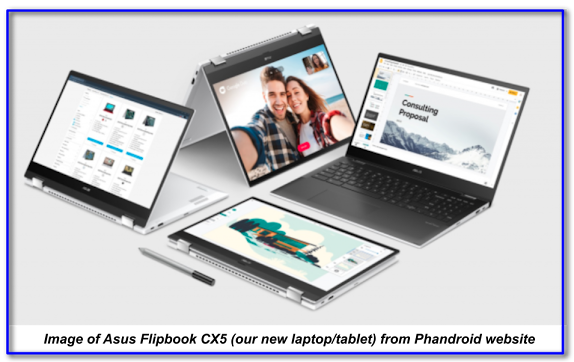
It's been a full year since we've used our Windows PC. Since then we've been all Chromebook, all the time! I use it for research and content creation, my wife uses it for online purchases and financial management and we both occasionally use it for social media, browsing, etc. Last year I documented the research and reasoning behind this decision to switch and the specific Asus Chromebook we bought. (See Secure, Fast & Customizable: Why I Ditched My Windows PC for a Hot Rod Chromebook.)

Living with Our Chromebook


So what's life been like without a Windows PC? In a nutshell, it's been great! Here's a summary of benefits and a single challenge.

The Benefits

  • It's just more peaceful! There are no more breathless notifications from the tech press or emailed warnings about a potential hack of the OS such as we had been vigilantly tracking when we were beleaguered citizens in the world of Windows.
  • Frequent, automatic updates of the ChromeOS pushed by Google which bring up-to-the-minute security protection and a regular stream of new features which are always fun to investigate.
  • Ability to seamlessly use our Android apps and have app data instantly updated across all our devices (phones and tablets).
For example when I have ideas about a new article, I can speak them to my Google smart home speaker and it will add it to my Google Keep "Ideas List." Later, if I'm on the go, I can flesh out the idea by dictating directly into Keep using the mic on my phone's Gboard. When I get home I can kick back on my recliner and use my Samsung tablet to research and further expand the outline/draft in Keep. When it's time to pull in images that will be part of the article and prep them using Google's online Drawing tool, I simply fire up the Chromebook and use its large screen and mouse to work with them. Eventually, when the article is close to completion, I pour everything I've assembled in Keep (and sometimes drafted using Google Docs) into my Google Blogger website, add any graphics I've built then finalize the post using my tablet and my Chromebook. And throughout this process, while I'm using any of these devices, I can see and handle incoming texts/voicemails from Google Voice and emails from my Gmail. In short, my Chromebook is seamlessly integrated into my Android-based workflow! 
 
My Document Work Flow:
from Phone to Tablet to Chromebook & Back

  • Super fast performance ... Did I mention it's fast.. really fast?! No lags or waits for hunks of software to load. In fact, sometimes I feel like it's challenging me to keep up!
  • Very simple sharing of our Chromebook between two separate, independently secure user accounts. In the morning we both just sign in and we each take turns throughout the day jumping into our own unique, customized desktop and workspace as needed. It feels like we have two separate machines.
  • There's none of that lead weight feeling when I switch to using my computer from using my tablet or phone. In the past my fast tablet and phone apps would help me breeze along doing all sorts of different chores, including making notes and drafting publications. But when I fired up my Windows PC to finalize a document or assemble a bunch of elements into a single graphic, it felt as though I were trying to walk with lead weights on my feet. Everything slowed down and I had to wait for security updates, apps and other stuff to load. It simply took the swiftness, efficiency and spontaneity out of whatever I was doing. Now that particular computer speed bump is gone! My creation process is seamless from brainstorming through finalization.

A Single, Easily-Overcome Challenge


After many years of using TurboTax we had developed the habit of buying the disc, installing it on our Windows PC, updating it with state and local files and then using it to prepare our taxes. But this year that was not possible, since the disc-based version is only available for Windows and Mac machines. Chromebook users must use the online version of TurboTax. While this online version had always been an option, we have been hesitant to use it for security reasons. In fact, we have always made sure our Windows PC was completely offline while we are working on our taxes. 

So this year we had to remind ourselves that most experts regard the Chromebook, with its frequent security updates, as a far safer online machine than either Windows or Mac PCs. And we also reminded ourselves that millions of people are already using TurboTax's online option so their extra stringent security measures are essential to their existence as a business. The bottom line: We took the plunge, set up the account and were pleasantly surprised to find the online TurboTax user interface was pretty much the same as the disc-based version. We filed our taxes quickly and without any glitches!

The Moral of the Story


In sum, our first year with our new Chromebook has proven to be quite painless and has even held a few pleasant surprises. In particular, the Android/Chrome OS interoperability among devices is super convenient. So if you're a Windows user, like we were, I don't think you should hesitate to take the leap to a Chromebook when it's time for that new computer. 

Just ask yourself this question: Do I really have any programs or chores that I can only run on a Windows PC or Mac, as opposed to using online or with a Chromebook? If you have none, then let that old PC or Mac go and get yourself a speedy and secure Chromebook! But do take your time to shop around and get a machine that has the horsepower to meet your needs and the lifespan to receive security updates for the many years that you will probably be enjoying it.

For a deep dive into the technical issues and shopping considerations for Chromebook buyers, see my article Secure, Fast & Customizable: Why I Ditched My Windows PC for a Hot Rod Chromebook.

_____________________________________


But don't simply take my word for it! See:


Related Articles from this Website

Monday, July 18, 2022

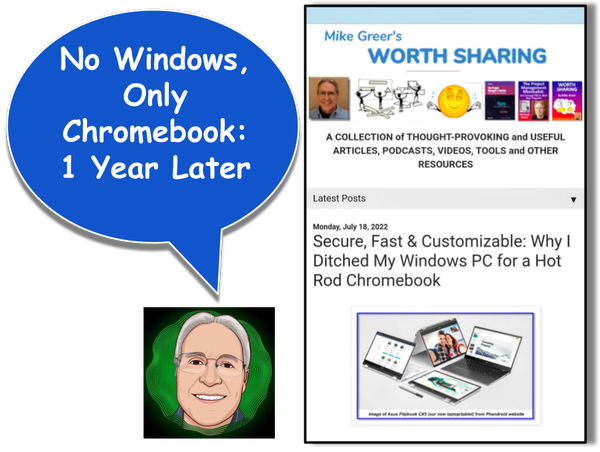
Secure, Fast & Customizable: Why I Ditched My Windows PC for a Hot Rod Chromebook

Go to Phandroid Article: "The Incredible Asus Chromebook Flip CX5..."

Overview


In this article I explain why, after over 40 years using personal computers (mostly Windows-based), I  switched to a powerhouse Chromebook. And I'm loving it! If you're in a hurry (and you're willing to skip my carefully-crafted prose😞) you can skim through the stuff in bold to find the big ideas. Or you can just scroll down to one of these main sections:
  • After 30 years, enough with Windows, already!
  • Chromebooks dominate in education because they're powerful & easy to use.
  • Chromebooks are REALLY secure.
  • Chromebooks are fast! (Thanks to the ChromeOS.)
  • Chromebooks are customizable.
  • Buyer beware! It may be cheap, but when does that low-cost Chromebook expire?
  • My Chromebook: Part of a Powerful Ecosystem of Google Tools
  • Final Thoughts: How 40 Years of Personal Computing Has Led Me to a Chromebook
  • Bonus Tip: Don't throw away that old Windows PC or Mac. You might be able to make it a Chromebook!
[FYI: This article contains over 60 links to references for further research. Enjoy!]
______________________________________________________

Thursday, January 24, 2019

Two to Inspire: Find Your Mission & Start Creating!


Are you feeling like you've lost your creative edge? Are you wanting to break out of the doldrums? Here are a couple of archival blog posts that can help. The first is all about finding your unique mission and leveraging it. And the second will hook you up with some practical tools to help you get your creative juices flowing and capture the results of your innate brilliance Enjoy!

(Note: Each of these posts includes links to more resources to get you up and running.)

Wednesday, December 26, 2018

The Best of 2018: Seven Posts Worth a Second Look


I began 2018 with the hard (and tedious!) work of moving all my websites to Google's Blogger platform.  (It's a long story... But the move was necessary due to relentless and expensive-to-defend-against attacks by hackers at my old hosting service.) Finally, after the dust settled in April, I was able to gather my energy for creating some new posts.

Looking back over the year, I am proud to say that this new WORTH SHARING website has produced some reasonably good stuff. The following seven posts are the best of the year. You'll find reviews of some simple, useful tools, as well as a couple of meatier posts that will challenge you or shift your perspective. Enjoy! 

Friday, March 23, 2018

Introducing the PDF Collection: Useful Tools and References To Go!

The PDF Collection: downloadable tools & references

My new PDF Collection is an eclectic bunch of free PDFs that I have published over the years.* There are four broad topic areas:  
  • General Interest (All sorts of useful stuff) 
  • Project Management 
  • Project Management Minimalism (See definition here)
  • Managing Instructional Design & Development Projects

Until a few days ago, these PDFs were scattered all over the place. As part of my recent website consolidation I've decided to pull them together in a single location so they are easier to find.